General Settings
The General Settings page allows you to configure core WCPOS functionality. These settings affect how products are displayed, how quantities are handled, and how barcode scanning works.
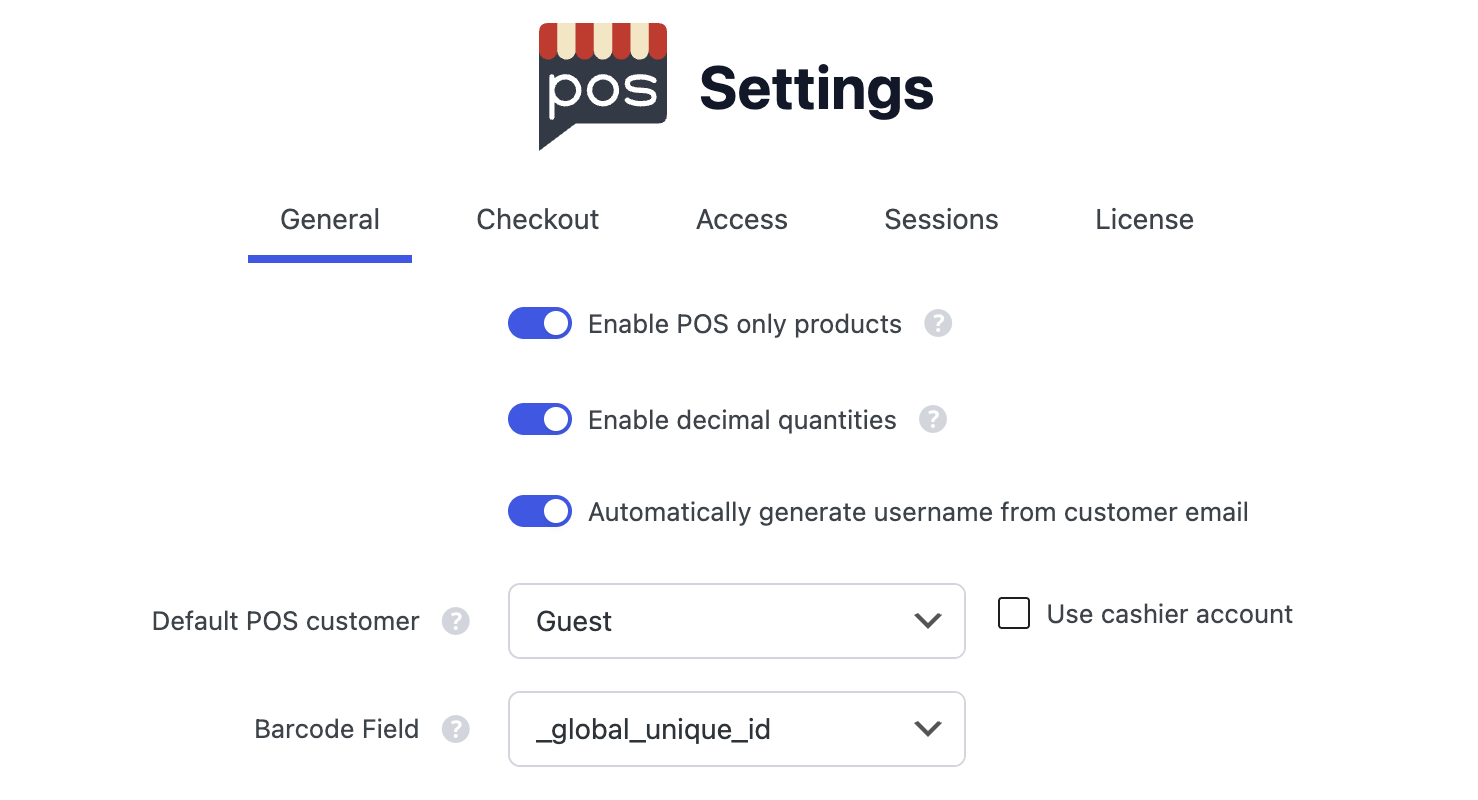
General Settings in the WP Admin
Enable POS Only Products
This setting adds online and POS visibility options to your product admin pages, allowing you to control whether products appear in your online store, POS system, or both.
Only enable this setting if you need to hide products from either your online store or POS. When enabled, it adds an extra database lookup for every product request, which can impact performance.
When to enable:
- You have products that should only be sold in-store (POS only)
- You have products that should only be sold online (Online only)
- You need different product catalogues for online vs in-store sales
When enabled, you can set product visibility to:
- POS & Online (default): Product visible in both online store and POS
- POS Only: Product hidden from online store, visible only in POS
- Online Only: Product hidden from POS, visible only in online store
Setting Product Visibility:
- Edit a product in WP Admin
- Look for the "POS Visibility" setting in the product data panel
- Choose your desired visibility option
- Update the product
You can also use bulk actions to change visibility for multiple products at once from the Products list page.
Enable Decimal Quantities
This setting allows customers and staff to enter decimal quantities when adding products to the cart.
Examples of decimal quantities:
- 0.25 (quarter unit)
- 1.5 (one and a half units)
- 2.75 (two and three-quarter units)
Useful for:
- Products sold by weight (e.g., 0.5kg of coffee beans)
- Fractional services (e.g., 1.5 hours of consultation)
- Bulk products that can be sold in partial quantities
Automatically Generate Username from Customer Email
When enabled, WCPOS will automatically create usernames for new customers based on their email addresses during checkout. This streamlines the customer creation process and ensures consistent username formatting.
Default POS Customer
Select the default customer that will be assigned to new POS orders. Common options include:
- Guest: Orders are not associated with any user account
- Cashier: Orders are associated with the logged-in cashier's account
- Walk-in Customer: Orders are associated with a specific customer account (you'll need to create this account first)
Use Cashier Account
When enabled, the cashier's user account will be used as the default customer for POS orders instead of the selected Default POS Customer.
Barcode Field
This setting determines which product field WCPOS will search when scanning barcodes or using the barcode search functionality.
After changing the barcode field setting, you must clear and refresh your product data in the POS for the change to take effect.
How to Clear and Refresh:
- Go to the Products screen in your POS
- Long press the sync icon (↻) at the bottom of the screen
- Select "Clear and Refresh" from the context menu
- Wait for the products to reload with the new barcode field data
This is necessary because the POS caches product data locally, and changing the barcode field setting doesn't automatically update the cached data.
Default Option
_global_unique_id - This is WooCommerce's Global Unique ID field, introduced in WooCommerce 8.2 (July 2024). It's designed to store GTIN, UPC, EAN, or ISBN codes and is the recommended option for new installations.
Other Common Options
_sku - The product SKU (Stock Keeping Unit) field. This is a good fallback option if you're not using the Global Unique ID field.
Third-Party Plugin Meta Keys
If you're using a barcode management plugin, you may need to use their specific meta key:
| Plugin Type | Common Meta Keys | Description |
|---|---|---|
| EAN Plugins | _ean, _ean13, _ean8 | European Article Number codes |
| UPC Plugins | _upc, _upc_code | Universal Product Code |
| GTIN Plugins | _gtin, _gtin13, _gtin14 | Global Trade Item Number |
| Generic Barcode | _barcode, _product_barcode | Generic barcode fields |
| WooCommerce Product Barcodes | _barcode_text | Popular barcode plugin |
| ATUM Inventory | _atum_barcode | ATUM inventory management |
Finding Your Plugin's Meta Key
To find the correct meta key for your barcode plugin:
- Edit a product in WP Admin
- Add a barcode using your plugin
- Check the plugin's documentation for the meta key name
- Or inspect the database
wp_postmetatable to see what meta key was created
Custom Meta Keys
You can also use any custom meta key that stores barcode data. Simply enter the meta key name (including the underscore prefix if applicable) in this field.
Test your barcode scanning after changing this setting to ensure it's working correctly with your chosen field. Remember to clear and refresh your product data in the POS for the change to take effect.